Change how your agent looks and sounds
Change your agent's name, greeting, colours and instructions, and where the chat button sits.
In Agents, open your agent. Each row opens one setting.
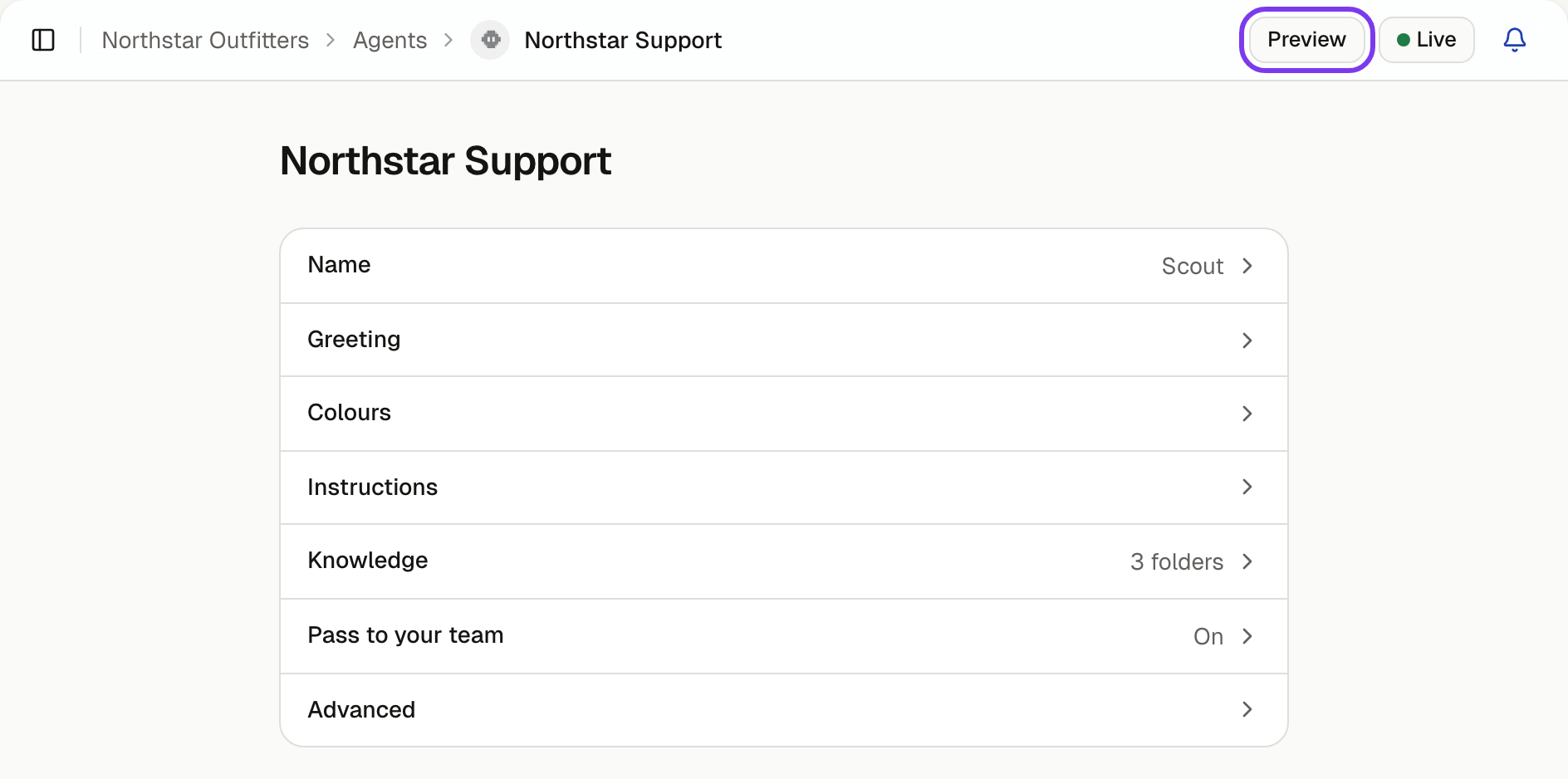
| Row | What it changes |
|---|---|
| Name | The name your team sees and the name customers see |
| Greeting | The first message and the suggested questions |
| Colours | The chat's colour, and whether it's light or dark |
| Instructions | What the agent helps with and how it talks |
| Advanced | Which side the chat button is on, or your own button instead |
Change a setting
Select its row and make your change.
Save it
Select Save changes. You don't need to publish again: customers see the change the next time they load a page on your site.
Check it
Select Preview at the top of the agent's page, marked with a purple ring above, and ask a question your customers ask.
Name
Name is what your team sees in Turbo Agent. Customers see is the name at the top of the chat.
Greeting
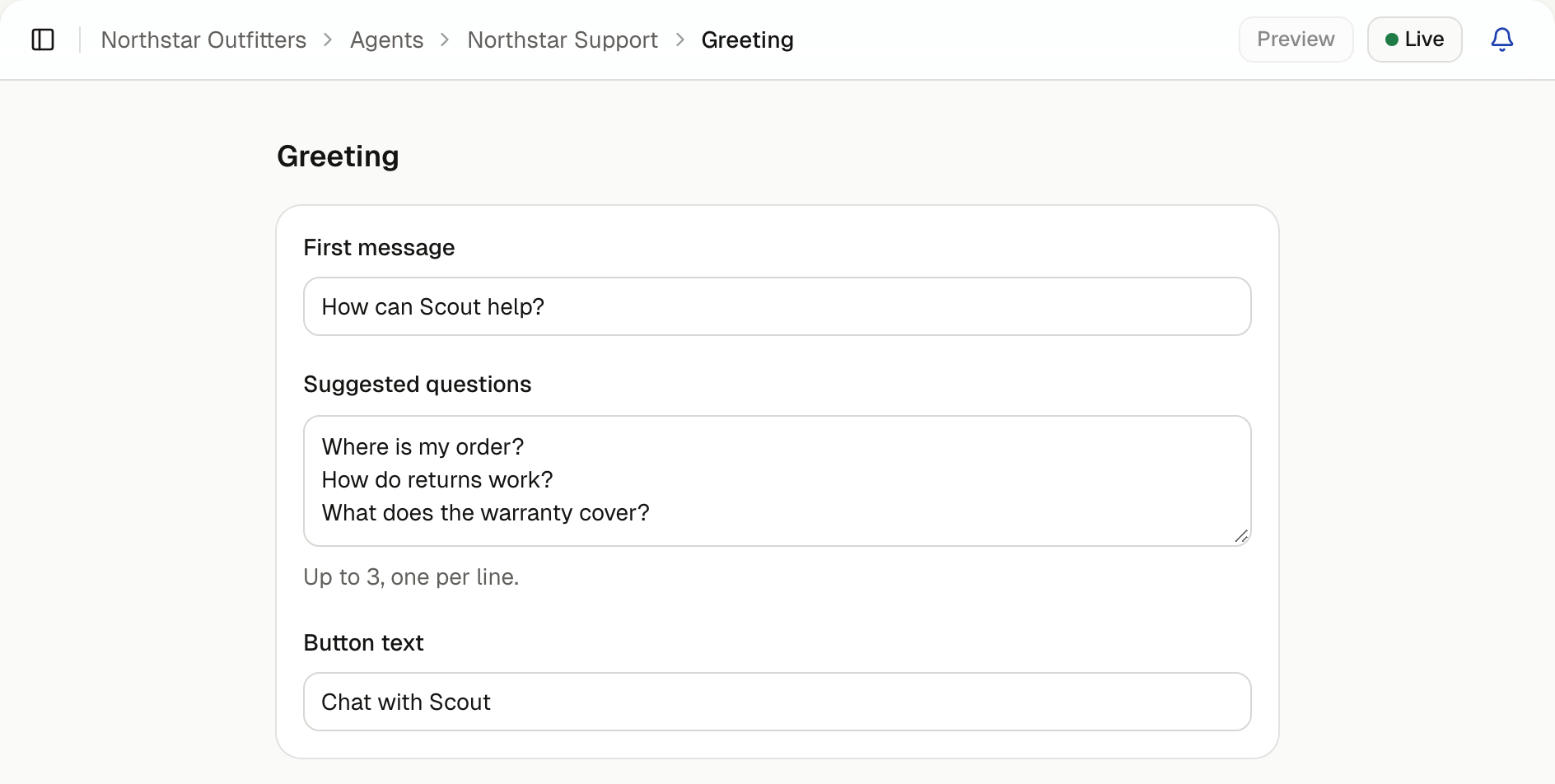
- First message is the greeting a customer sees when they start a new chat.
- Suggested questions appear below the first message. Add up to 3, one per line. Use real questions your customers ask, such as "When will my order arrive?"
- Button text is what screen readers call the chat button. The button itself shows an icon.
Colours
- Buttons and messages sets the colour of the chat button, the main buttons in the chat and the customer's messages. Pick one of the suggested colours, or enter your own.
- Light or dark sets the chat's background. Automatic uses each customer's own light or dark setting.
In a dark chat, a colour that would be hard to see is swapped for one that isn't.
Instructions
Instructions tell the agent what to help with and how to talk. Customers never see them. Write them as you'd brief a new teammate:
- what the shop sells and who it's for
- how to talk, such as "friendly, short answers"
- anything it should always or never do, such as "Never promise a delivery date"
Keep facts that change, such as prices and opening times, in Knowledge.
Move the chat button
Open Advanced, then Chat button. Under Side, choose Left or Right, then select Save changes. On a computer, the chat opens on that side. On a phone, it fills the screen.
Use your own button
To open the chat from a button or link of your own:
Hide the floating button
Open Advanced, then Chat button, and turn on Hide the floating button. To show the chat button while a customer has a chat in progress, also turn on Let customers reopen the chat.
Add the code to your site
Ask whoever looks after your website to add the code shown. Without it, customers can't open the chat.
Save and check
Select Save changes, then check your button opens the chat on your site.