Connect Cloud MT
Let your agent find and recommend products from your Cloud MT website, with live stock.
Connecting Citrus-Lime Cloud MT gives your agent your product catalogue, so it can help customers find the right product, compare options and link to it on your site. Stock is checked live when a customer asks.
What you need
The email and password of a Cloud POS user that can use Cloud MT, and your Cloud MT website's address.
Connect it
Open Cloud MT
In Settings, select Integrations, then Cloud MT.
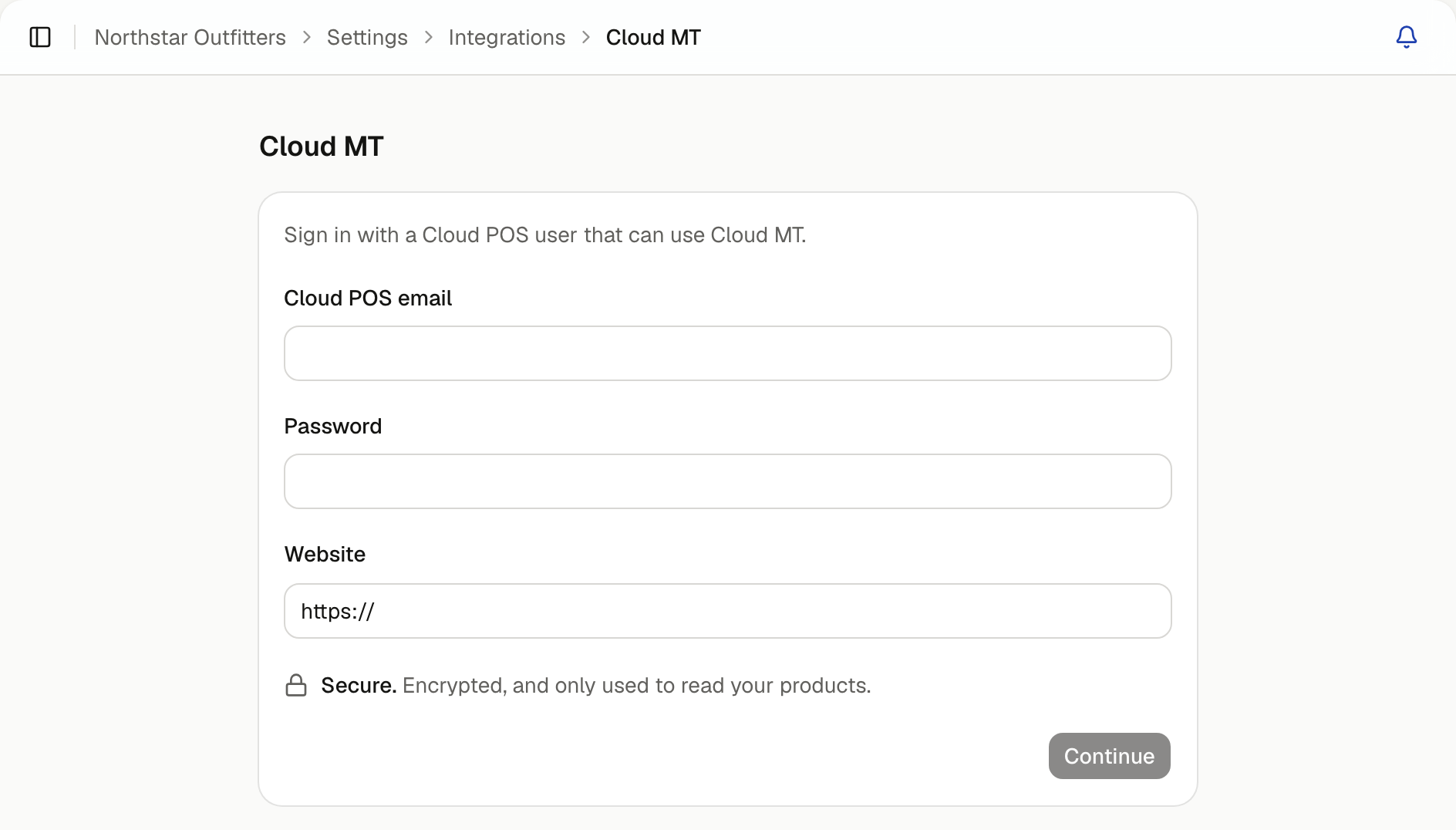
Choose which agents answer from it
Tick the agents that should know your products, then select Connect.
Turn on product recommendations
Open each agent, select Recommend products and turn it on.
If you connect Cloud MT while setting up an agent, that agent gets it and recommendations are turned on for you.
Your products appear in Knowledge as a Cloud MT folder. How often they're checked for changes depends on your plan; stock is always live.
More than one site
If you run several Cloud MT sites, add each one so the agent links customers to the right place. In the Cloud MT settings, select Sites, then Add site, and enter its Name, Web address and Cloud MT site number.
Add the chat to a Cloud MT site
Cloud MT doesn't let you add code to your site yourself. Ask Citrus-Lime support to add the chat code for you. Add the chat to your website shows where to find the code.