Pass chats to your team
Choose when your agent hands a chat to a person, what it asks first, and what happens outside your support hours.
When your agent can't finish a chat, it can pass it to your team. The chat lands in your inbox with a summary of what's happened so far, so nobody has to ask the customer to start again.
Turn it on
Open the agent
In Agents, open the agent and select Pass to your team.
Turn on passing chats
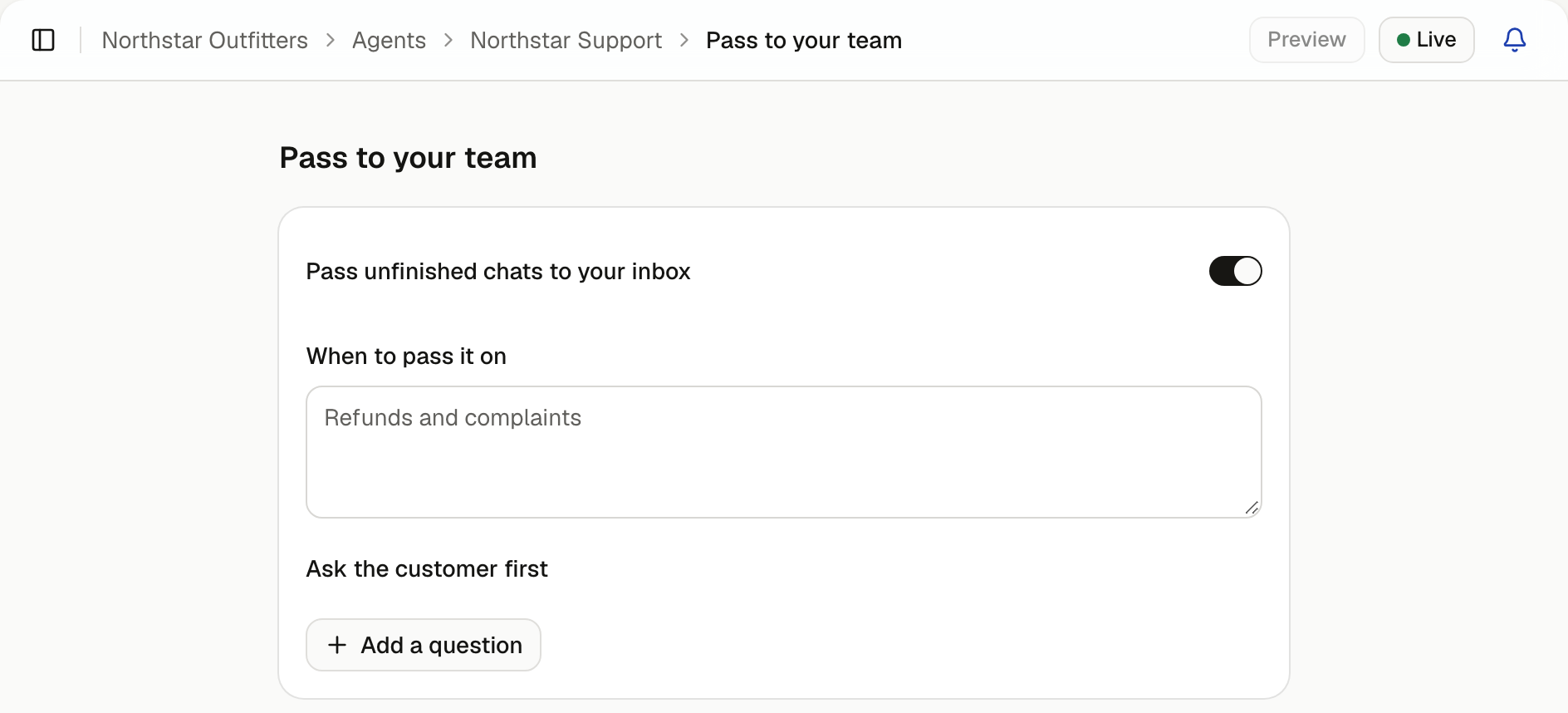
Turn on Pass unfinished chats to your inbox.
Say when to pass it on
Under When to pass it on, list anything a person should always handle, such as "Refunds and complaints". The agent also offers a person when a request needs your team to act or decide, and whenever a customer asks for one.
The customer always confirms before the chat is passed on.
Choose what to ask first
Under Ask the customer first, choose what the agent collects before handing over, such as their email. Select Add a question to ask something else, such as an order number.
Save when you're done.
What your team sees
The chat appears under Waiting in the Inbox, with a summary for your team and a suggested first reply. Reply to customers explains the rest.
While they wait, the customer sees that they're in the queue, with updates if the wait goes on.
Outside your support hours
Set your hours in Settings, then Support hours. Choose 24/7 if someone is always around, or Weekly to set hours for each day.
Outside those hours, the agent asks the customer for an email address and tells them when your team will be back in touch. The email shows under Follow up at in the chat's details, so you can reply when you're next in.
Get told when a chat is waiting
Select the bell in Turbo Agent and turn on alerts for this browser. On an iPhone, add Turbo Agent to your home screen first, then turn on alerts from there.