Set up your first agent
Start an agent from your website, connect Cloud POS, Cloud MT or Helpjuice, and put the chat on your site.
Your agent is the assistant that answers your customers. Give it your website's address and it reads your pages, then sets itself up: its name, greeting, colours and instructions. You can change any of it later.
Start from your website
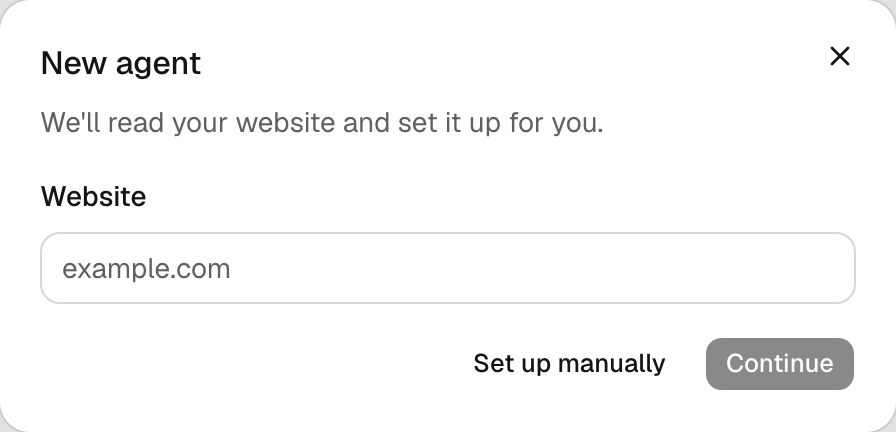
In Agents, select New agent. Enter your website's address, such as yourshop.co.uk, and select Continue.
Check your agent
While your site is read, the agent fills in and lists the pages it learns from. Select Pages to see them, or Try it to ask it a question.
When it looks right, select Continue.
Connect integrations
Integrations your site already uses are ticked for you, marked Found on your site. Tick anything else you use, then select Continue.
Each one you tick asks for its sign-in details in turn. If you don't have them to hand, select Not now and connect it later from Settings, then Integrations.
| Integration | What your agent gets | Guide |
|---|---|---|
| Citrus-Lime Cloud POS | Orders, workshop jobs and stock | Connect Cloud POS |
| Citrus-Lime Cloud MT | Your products | Connect Cloud MT |
| Helpjuice | Your help centre articles | Connect Helpjuice |
Add it to your website
Enter the address customers visit and select Add. Then copy the code and paste it into your site. Add the chat to your website explains where it goes.
The screen shows You're live once the chat loads on your site.
If your site can't be read
Some sites block automated reading. You'll see Couldn't read with the address. Select Fill it in yourself to set up the agent by hand, then add pages or files for it to answer from.
What to do next
- Choose what it answers from, such as delivery and returns pages or files.
- Pass chats to your team when the agent can't help.
- Reply to customers from the inbox.