Choose what your agent answers from
Add your website pages, files and connected tools to Knowledge, and choose which folders each agent uses.
Your agent answers only from what you give it. Everything it can use lives in Knowledge, in folders. Each agent answers from the folders you tick for it, so one agent can cover your shop and another your trade customers.
If the answer isn't in its folders, the agent says so rather than guessing. If you pass chats to your team, it offers that instead.
What you can add
In Knowledge, select Add.
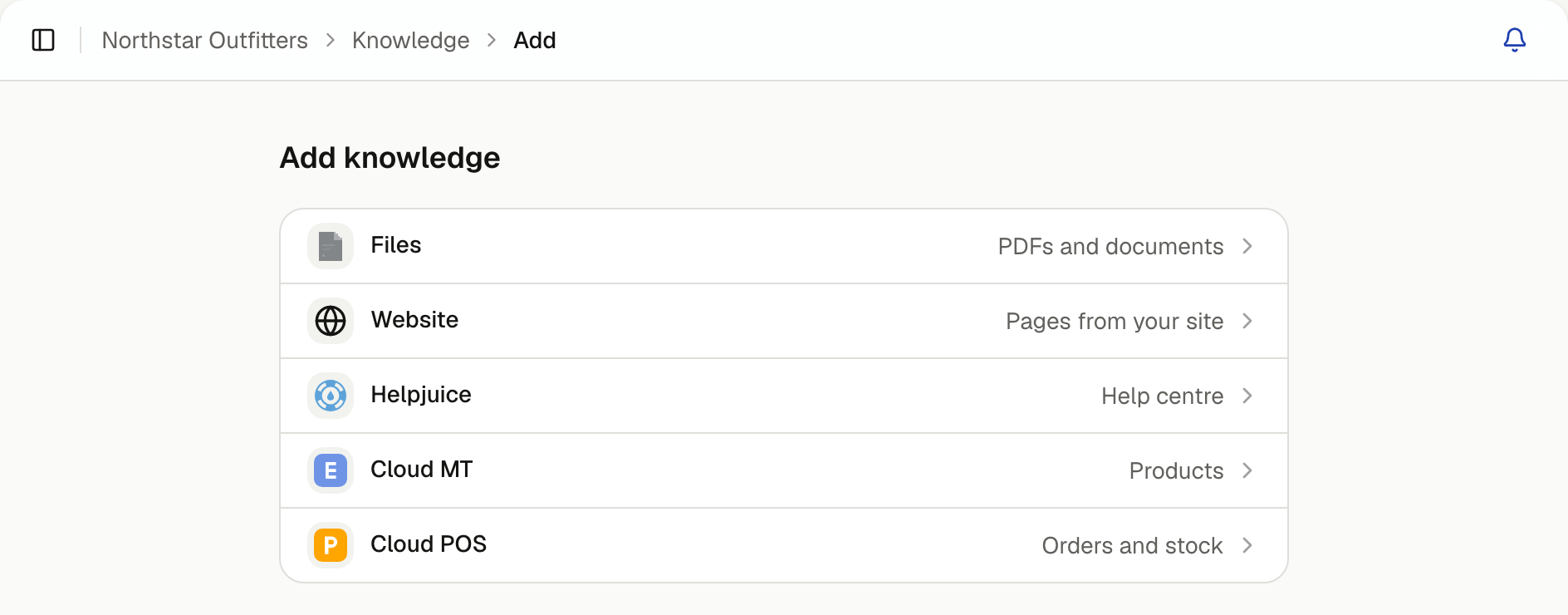
| Add | What it's for |
|---|---|
| Files | PDFs and documents, or a single webpage by its address |
| Website | Pages from your site, read again every week |
| Helpjuice | Your help centre. See Connect Helpjuice |
| Cloud MT | Your products. See Connect Cloud MT |
| Cloud POS | Your shops, orders and stock. See Connect Cloud POS |
Add your website
Select Website, enter your site's address and select Add website. Its key pages, such as delivery, returns and contact, are picked for you.
To change which pages it reads, open the folder's menu and select Manage Website. Tick pages under More pages from your site, or use Find pages to search by title or address. Your homepage is always included.
Pages are read again every week. When your site gains a page, it shows up unticked and marked New, so nothing is added without you choosing it. Select Update now to read your pages straight away, for example after changing your returns policy.
Add files
Create a folder
Select Files. Give the folder a Name, and under Questions it answers, say what's in it, such as "Repairs and sizing". Select Continue.
Choose which agents answer from it
Tick the agents, then select Create folder.
Add your files
Select From computer and drop your files in, or select From URL to add a single webpage. Files can be PDF, Office, text or markdown, up to 4 MB each.
Choose an agent's folders
Open the agent in Agents, select Knowledge, and tick the folders it should answer from. Save when you're done.
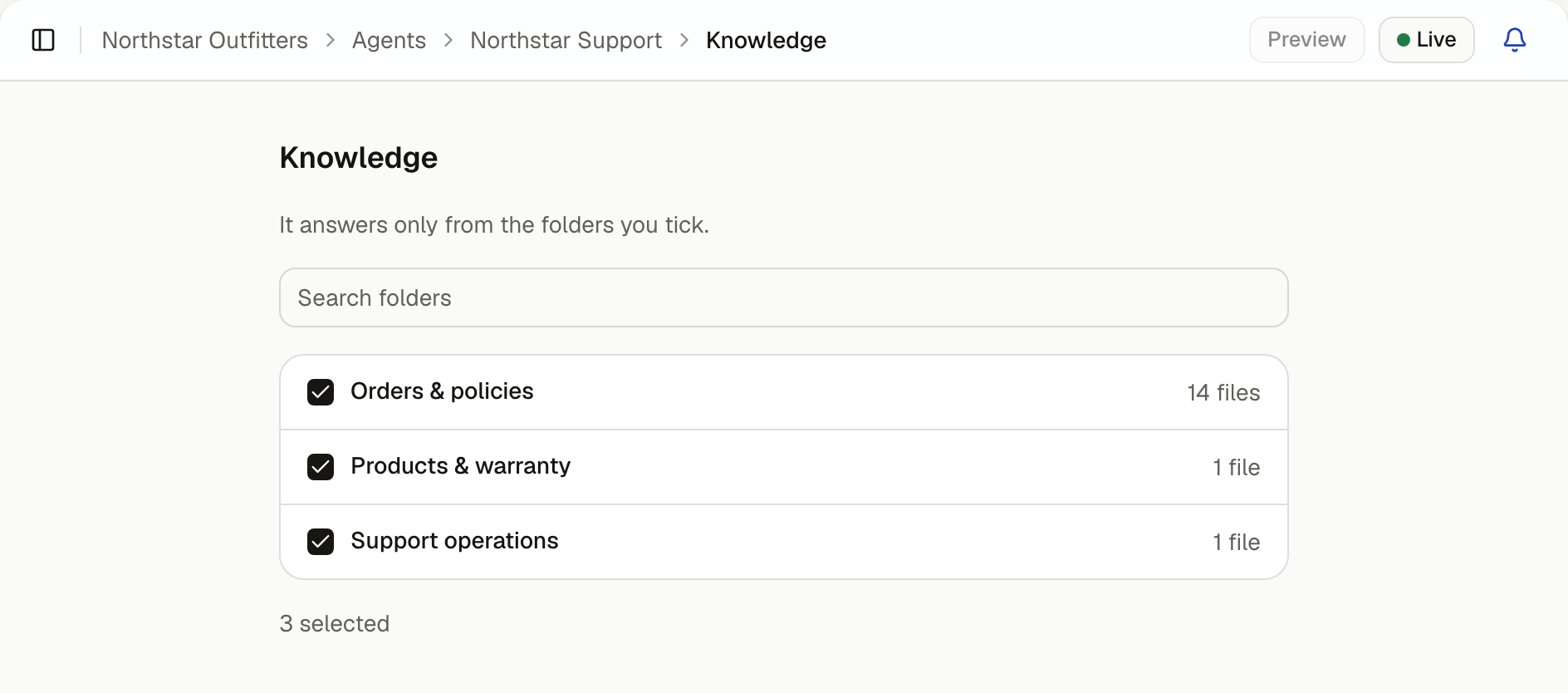
You can also do it from the folder: open its menu in Knowledge and select Agents.
Check an answer
Open a folder's menu and select Try a question to see what it finds for a question. To try the whole agent, select Preview at the top of the agent's page.