Update answers from your website
Read changed pages again, choose which pages your agent answers from, and what to do if your site moves.
Your website's pages are read again every week. To use a change sooner, open Manage Website and select Update now.
Open Manage Website
Open your website's folder
In Knowledge, select the folder named after your website.
Select Manage Website
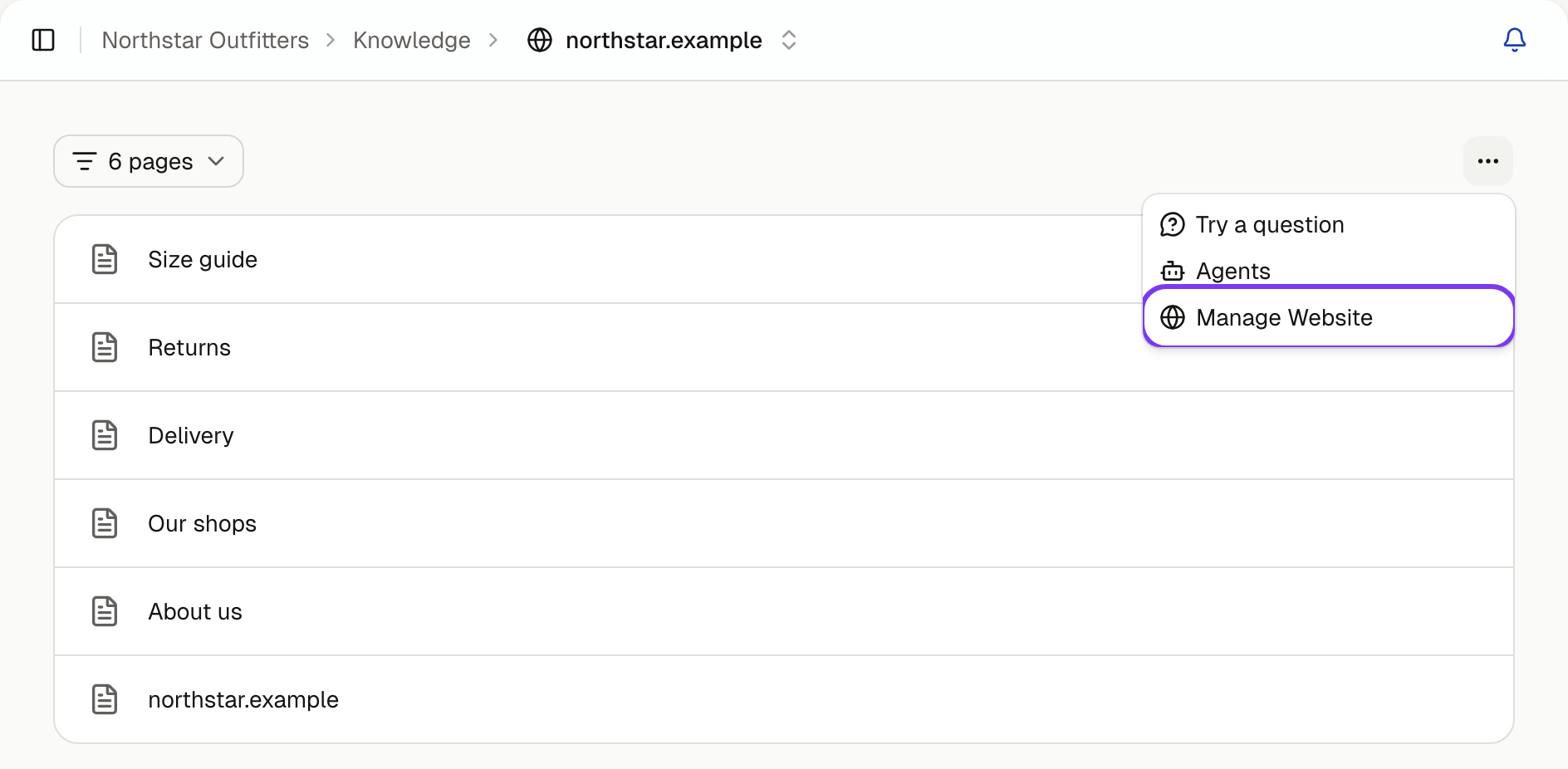
Open the three-dot menu at the top right and select Manage Website, marked with a purple ring below.
Read your pages now
Select Update now, for example after changing your returns policy. A page read in the last hour isn't read again. You can update again 10 minutes after an update finishes.
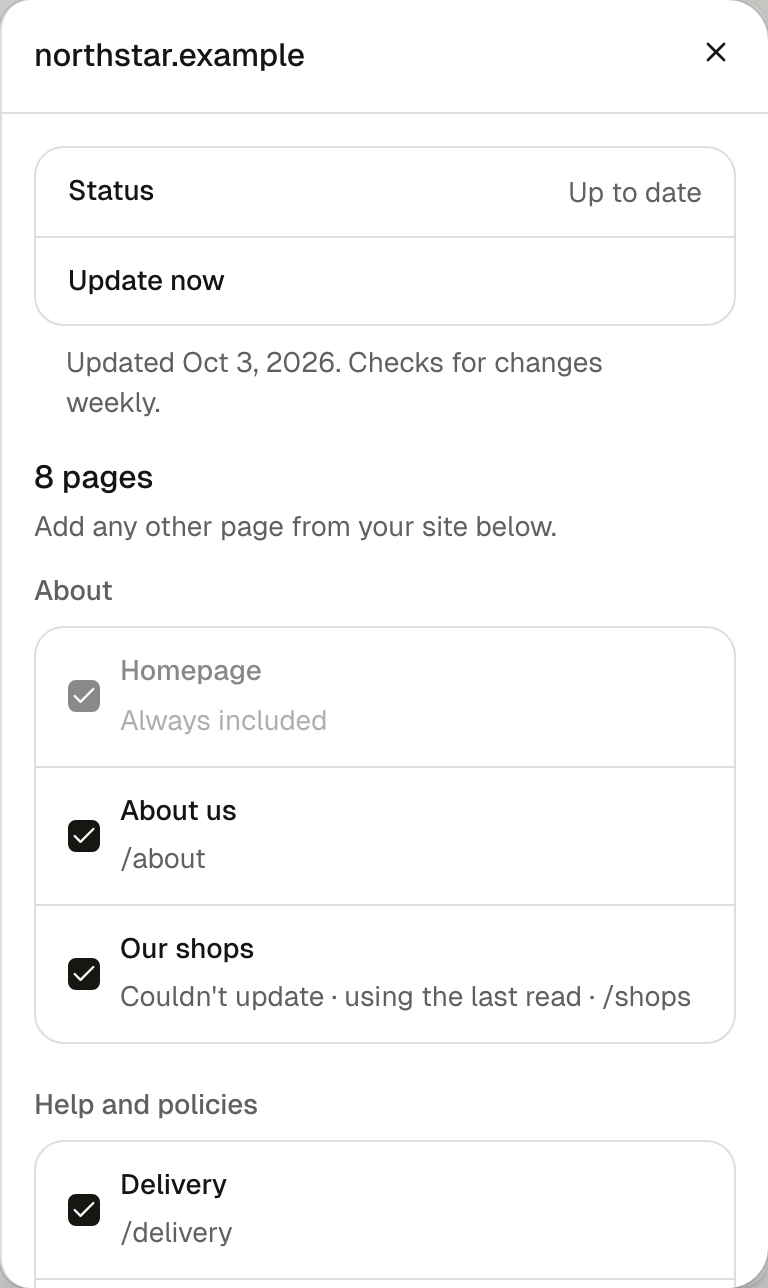
Status shows whether the last update finished, with the date below it. Each ticked page is listed underneath.
Choose which pages are read
Tick the pages your agent should answer from. Select More pages from your site to find others. To add a page by its address, enter it under Add a page and select Add. Then select Save changes. Your homepage is always included.
You can tick up to 500 pages across all your websites, on any plan. At 500, untick a page before adding another.
What a page's status means
Most pages show only their address. A status appears while a page is being read, or when it needs a look.
| Status | What it means | What to do |
|---|---|---|
| New | Found on your site in the last two weeks. Not ticked, so not used in answers. | Tick it if customers ask about it, then save. |
| Reading… | Being read, or got ready for answers. | Nothing. |
| Couldn't update · using the last read | The page didn't load this time. Your agent uses the previous copy. | Check the page opens in your browser, then select Update now. |
| Couldn't read | There's no text to answer from, so the page isn't used in answers. | Check the page opens in your browser and has text of its own. |
| This page no longer exists. | Your site says the page is gone. The update takes it out of answers. | Untick it, or add the page that replaced it, then save. |
| This page now goes to another website. | The address sends customers to a different site. The update takes it out of answers. | Untick it and save. |
| Same as another page | It mostly repeats another ticked page. Your agent uses that page. | Nothing. |
| moved from an address | Your site sent the old address to a new one on the same site. | Nothing. Your agent keeps using the page. |
If your website moves to a new address
If your old homepage redirects to your new homepage, Turbo Agent follows it a week after it first sees the redirect. The week is in case the redirect is only for now, such as a holding page while your site is down. Until then, your agent keeps answering from what it read before.
When it follows:
- The folder takes your new address and keeps your ticked pages. Its name changes too, unless you've renamed it.
- Every page gets the new address. As the pages are read, answers link to your new site.
- A page that's missing there is tried at its old address, to find where it went. If it's at neither, it's taken out of answers.
Administrators get a notification saying where your site moved. Two things are left to you:
- Check your ticked pages.
- Add your new address to the chat, and make sure its code is on your new site. The chat only runs on the addresses you publish it to.
If you've already added the new address as a website, both folders are kept. Follow the steps below from Check its pages.
If your old homepage doesn't redirect to your new one, or you don't want to wait, follow all the steps below.
Add the new address
In Knowledge, select Add, then Website. Enter your new address and select Add website.
Check its pages
Open the new folder's menu and select Manage Website. Check the pages you want are ticked. If you change any, select Save changes.
Choose which agents answer from it
Open the new folder's menu and select Agents. Tick the agents that used the old folder, then select Save.
Delete the old folder
On a computer, go to Knowledge, open the menu beside the old website's folder and select Delete folder. Confirm with Delete folder.
Publish to the new address
Change the addresses the chat runs on to include your new one, make sure the chat code is on the new site, then open it and check the chat button appears.