See how your agent is doing
Read how your chats went and how that's known, fix what customers couldn't get, check what happened after a fix, and look back week by week.
Insights shows how support went, what to improve, and what customers ask about. Choose a period at the top, an agent if you have more than one, and a country if your customers come from more than one. Every figure counts the chats started in that period, for that agent and country.
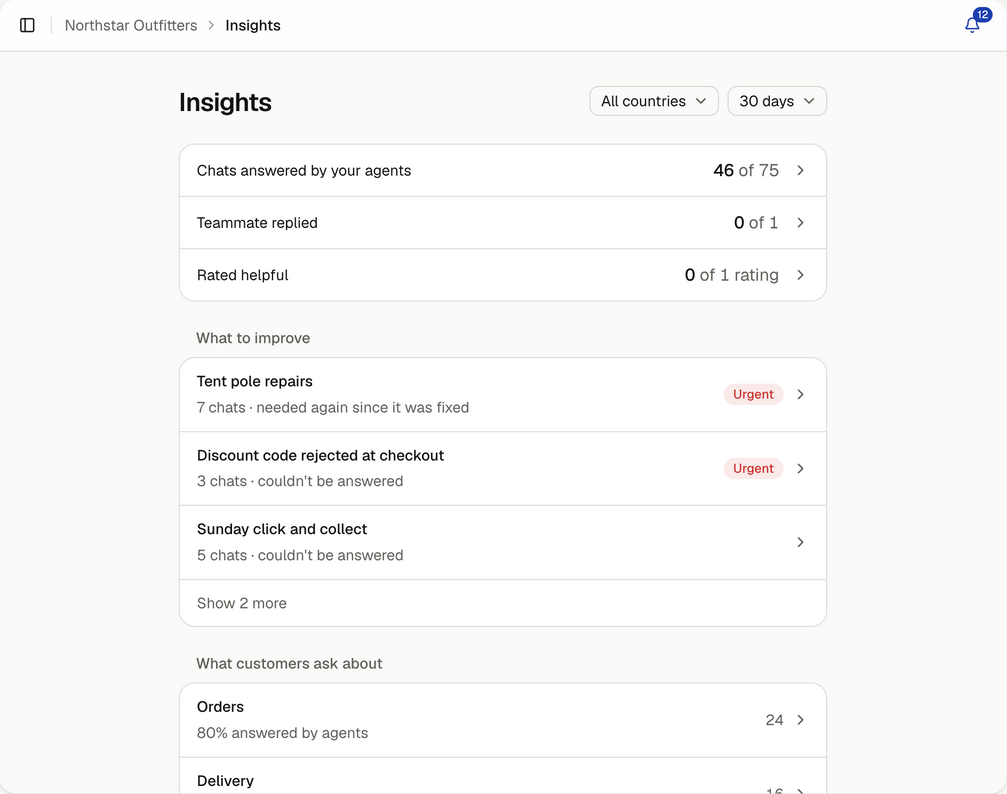
How chats went
Chats answered by your agents shows chats your agents answered on their own out of all chats, such as "42 of 60". Select it to see every outcome:
| Outcome | How it's known |
|---|---|
| Answered by your agents | The chat's review found the customer got what they needed, and no teammate replied |
| Answered with your team | The chat's review found the customer got what they needed, and a teammate joined it or replied in it |
| Passed to your team | The customer confirmed they wanted a teammate, and the chat was queued |
| Unanswered | The chat's review found the customer didn't get what they needed |
| Still going | A message in the last 20 minutes, and the chat hasn't ended |
| Waiting for review | The chat has gone quiet and will be reviewed within minutes |
Each chat is reviewed by AI about 20 minutes after it goes quiet, or as soon as it ends. Answered and unanswered are that review's assessment of the conversation, not the customer's own verdict, and they count only while the review covers the chat's latest message. If the customer or agent writes again, the chat goes back to still going or waiting for review until it's reviewed again. Shares are of reviewed chats, so chats not reviewed yet never count as answered. A chat passed to your team counts as passed to your team as soon as it's queued.
Select an outcome to see its chats. Each opens in your inbox, with the agent's answers, sources and actions. If the review got one wrong, select the menu beside the chat and choose Mark answered or Mark unanswered. Your choice covers the messages you saw: if the chat has new messages since you opened the list, it's refused so you can check it again. It stays until you choose Use the review's outcome, or until the chat carries on, when its next review decides again. Chats passed to your team can't be changed this way, because the handoff itself is the record.
You'll also see the answered share for the period before, once both periods have 20 reviewed chats, and Estimated time saved. Select the estimate to see how it's worked out: chats answered by your agents on their own × 5 minutes, so a chat a teammate joined or replied in isn't counted. Actual handling time isn't measured.
Teammate replied
Once chats have been passed to your team, Teammate replied shows how many of them got a reply from a teammate in the chat, out of every chat passed on, such as "5 of 8". A chat passes to your team once the customer confirms. Each chat counts once, from the first time it was passed on, so a chat passed on again later keeps its first reply. Select it to see:
- Teammate replied, with the typical time from the first request to the first reply.
- No reply, including any still waiting now. These also appear under What to improve.
- Left for your team to email: chats passed on outside your support hours. Replies by email aren't visible in Insights, so whether they were answered is unknown.
- From before replies were recorded: chats passed on before Insights started recording replies. If a teammate replies in one later, it counts as replied, but its wait isn't in the typical reply time, since that reply may not have been the first.
- Offered a teammate, customer carried on: the agent offered a teammate, or asked for the details or email it needed first, and the customer didn't go ahead. This isn't a failure.
- Couldn't be passed to your team: the customer confirmed and the request didn't get through.
Passing a chat to your team when it needs a person isn't counted against your agent.
Customer feedback
Beside the time of the latest reply in your website chat, once it has finished and isn't waiting for the customer's choice or details, customers can open Give feedback to say whether it helped. They can add what was missing if it didn't. Each chat has one rating, which they can change or remove. A saved rating is still there if they come back to the chat.
Rated helpful shows helpful ratings out of all ratings, such as "12 of 15 ratings", and how many of the chats where customers were asked have been rated. Until someone rates a chat, it says No ratings yet. It also counts chats rated not helpful that the review assessed as answered: check those and correct the outcome if the review was wrong. Select a count to see its chats and the reasons customers gave.
What to improve
The most useful things to fix, three at a time, with Show more for the rest. It lists up to 50 gaps, and says how many there are when there are more:
- Urgent gaps first: something stopped a customer buying, paying or getting what they bought, or raised a safety, legal or privacy concern.
- Chats passed to your team that got no reply, or couldn't be passed on. Select one to open the chats.
- Other gaps, most chats first: an answer your knowledge doesn't have, or something you don't offer.
A gap is resolved for the agents a fix reaches. An answer you add for one agent, knowledge only some agents can use, or a chat that gets the answer resolves it for those agents only: other agents' chats keep it in What to improve, which says which agents it's answered for. If an agent it was resolved for needs it again after that, it opens again for that agent, and the daily knowledge check won't resolve it for that agent again from the same knowledge: add a new answer instead.
Select a gap to see what customers asked and See the chats behind it. Then either:
- Write the answer, or What to tell customers for something you don't offer, choose which agents use it, and save. Your agents answer with it from then on.
- Select Not needed if it's something you don't want to answer. It won't come back.
When there's nothing to improve, this section isn't shown.
What customers ask about
Topics, most chats first, with the share of each topic's reviewed chats answered by your agents. Chats answered with your team are included in the total, so they don't inflate the agents' share. Select a topic to see its chats.
Below them, Worth knowing appears only when something stands out: a topic asked about far more this week than usual, or a country whose chats go differently.
Fixed
A gap moves to Fixed when a later chat gets the answer, your knowledge starts covering it, or you add an answer. When you added an answer or your knowledge started covering it, it shows that date and what chats started since then found, such as "6 chats started since 12 Sep asked about it, and each got the answer". Only chats started after the change count, so an older chat that carries on doesn't. A chat that carries on after its review drops out until it's reviewed again. With no such chats yet, it says it's too early to tell. Select one to see those chats.
This shows what happened after the change, not that the change caused it. A later chat that happens to get the answer doesn't move the date. If a gap is needed again, it goes back to What to improve, still showing what has happened since it was fixed.
Ask about your chats
Type a question into Ask about your chats, such as "What did people ask about delivery this week?". The answer comes from your chats and visits in the period, agent and country you've chosen, counted the same way as the rest of Insights.
Right now
While customers are chatting, a small panel shows how many are chatting and waiting for your team, and the chats that most need someone, with the ones waiting first. Select one, or Open Inbox, to go to your inbox. This panel covers this minute, whatever period you've chosen.
Where visits are counted, it also shows recent visits: visits that started in the last five minutes, not how many people are on your site now. The line beside it shows visits each minute for the last half hour. If the panel can't refresh, such as when you're offline, it says when it last checked.
When a topic suddenly gets far more chats than usual for that time of the week, such as "7 chats about Delivery in 15 minutes", it shows here and your team gets a notification.
Website
Once the chat button is on your website and the period has 100 visits, Visits that start a chat appears under Website. Select it to see chat window opens, chats started and visits. Opening the window alone doesn't count as a chat, and reopening it adds another open. Only chats that started on a page where visits are counted are included, so this can be fewer than all your chats; it says so when it is. A rate too small to round shows as "<0.1%", never 0%.
Pages people ask about lists the pages where the most chats start, once a page has 50 views in the period. Checkout and account pages are never listed. When people chat shows chats by day and hour against your support hours, once there are 20 chats in the period. Times are in your workspace's timezone, set under Settings, then Support hours.
Look back week by week
Weekly recaps lists the last four weeks. Select one to see the result, such as "7 of 9 chats answered by your agents", a change worth knowing when there is one, and one next step when there's something to do. Open Week details for the other outcomes, estimated time saved and supporting figures, counted the same way as the rest of Insights. A week without chats just says so.
After any week with chats, Monday to Sunday in UTC, administrators get that week's recap in the notification centre on Monday morning, with the same result, change and next step. To have it pushed to your devices too, open the bell, select the settings icon and turn on Push for Reports.